How to Make the Hotel Lobby AI Video With Two Photos
 Por TrendSwap@trendswapapp
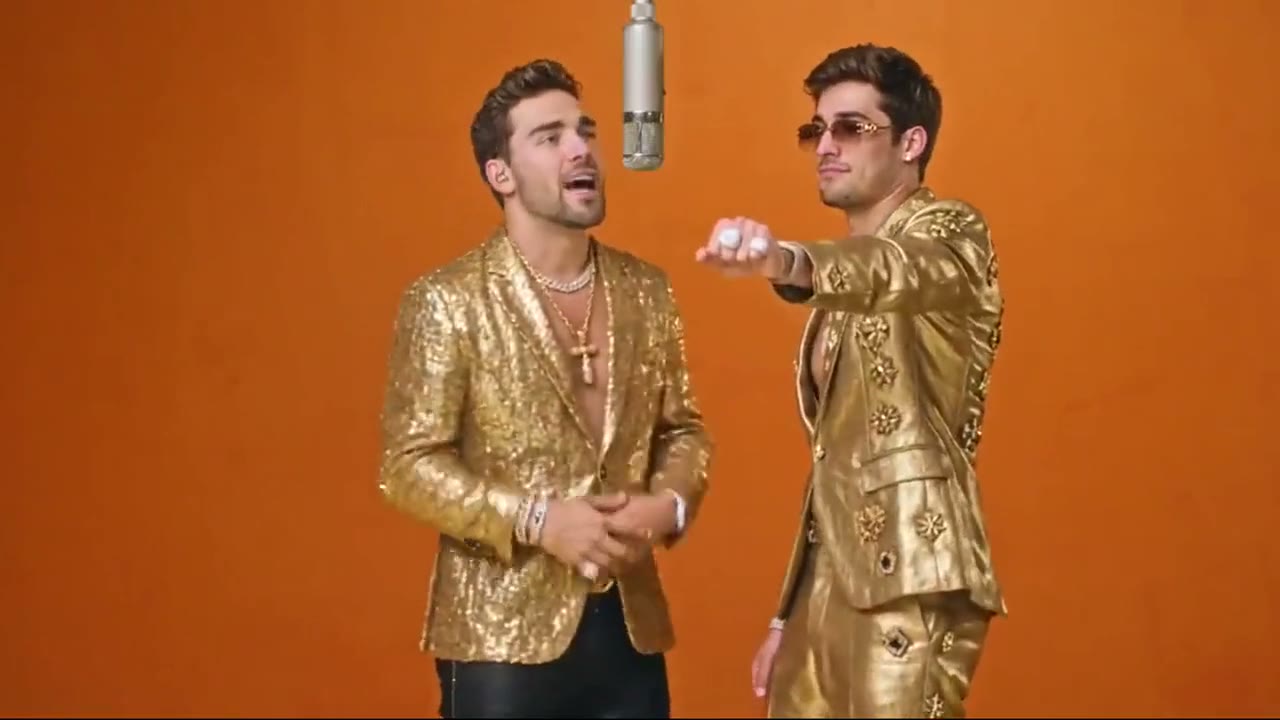
Put two photos at the orange booth mic and trade bars like the Hotel Lobby COLORS performance, with the original song. 10s 16:9 MP4 from $9.90.
En este artículo
Short answer: open the Hotel Lobby AI studio, upload two photos, one person or pet each, and press Generate. Photo 1 stands left of the hanging mic and Photo 2 on the right. TrendSwap puts the two of you in front of the orange wall from Quavo and Takeoff's 2022 COLORS performance, trading bars and gestures. You get a 10-second MP4 with the original song synced. No prompt, no CapCut, no editing.
What you upload and what you get
| You provide | You receive |
|---|---|
| 2 photos, one person or pet each: Photo 1 left of the mic, Photo 2 right | A 10-second MP4, 16:9 landscape |
| Your choice of resolution: 480p, 720p or 1080p | The orange wall, the hanging mic and the two of you trading bars |
| Nothing else: no prompt, no reference video, no editing | Audio already mixed into the file, no watermark |
What happens in the video
- The opener (0s–3s): The left performer starts the verse at the mic while the right one nods along.
- The answer (3s–6s): The right performer steps in and answers back while the left one keeps the rhythm.
- The back and forth (6s–8s): The camera moves in and you both trade gestures on the beat.
- The wide shot (8s–10s): The camera pulls back and both of you move to the beat on the orange stage.
How to make it in 3 steps
- Upload two photos. One person or pet per photo, face to the camera, waist up or full body. Photo 1 takes the left of the mic, Photo 2 the right; swap the uploads to swap sides. Avoid an orange top, which disappears into the wall. The studio shows a free framing preview before you spend credits.
- Pick a resolution and generate. Choose 480p, 720p or 1080p. Sign in and buy a pack if you have no credits yet, then press Generate. Rendering usually takes about 5–15 minutes; you can leave the page while it works.
- Download and post. Open My videos, play the clip and download the MP4. The original song is already synced, so it is ready for TikTok, Reels or Shorts.
Price, credits and failed renders
| Resolution | Credits per clip | Available with |
|---|---|---|
| 480p | 25 | Any pack |
| 720p HD | 50 | Any pack |
| 1080p Full HD | 100 | Trio Pass or Party Pass (the Single Pass goes up to 720p) |
The Single Pass is $9.90 for 50 credits, the Trio Pass $24.90 for 150 and the Party Pass $59.90 for 400 (see pricing). These are one-time packs with no subscription, and credits never expire.
If a generation fails, times out or is blocked by a safety check, the credits for that job return to your balance automatically. A completed video uses its credits, so start with a clear photo. If a finished file is broken or missing audio, email support@trendswap.app with the video reference. Card refunds follow the Refund Policy.
See pricing and the Refund Policy.
FAQ
Can I use one photo of both of us?
No. Crop each person out of the group shot and upload the two crops separately, so each performer keeps their own face.
Can a person and a pet do it together?
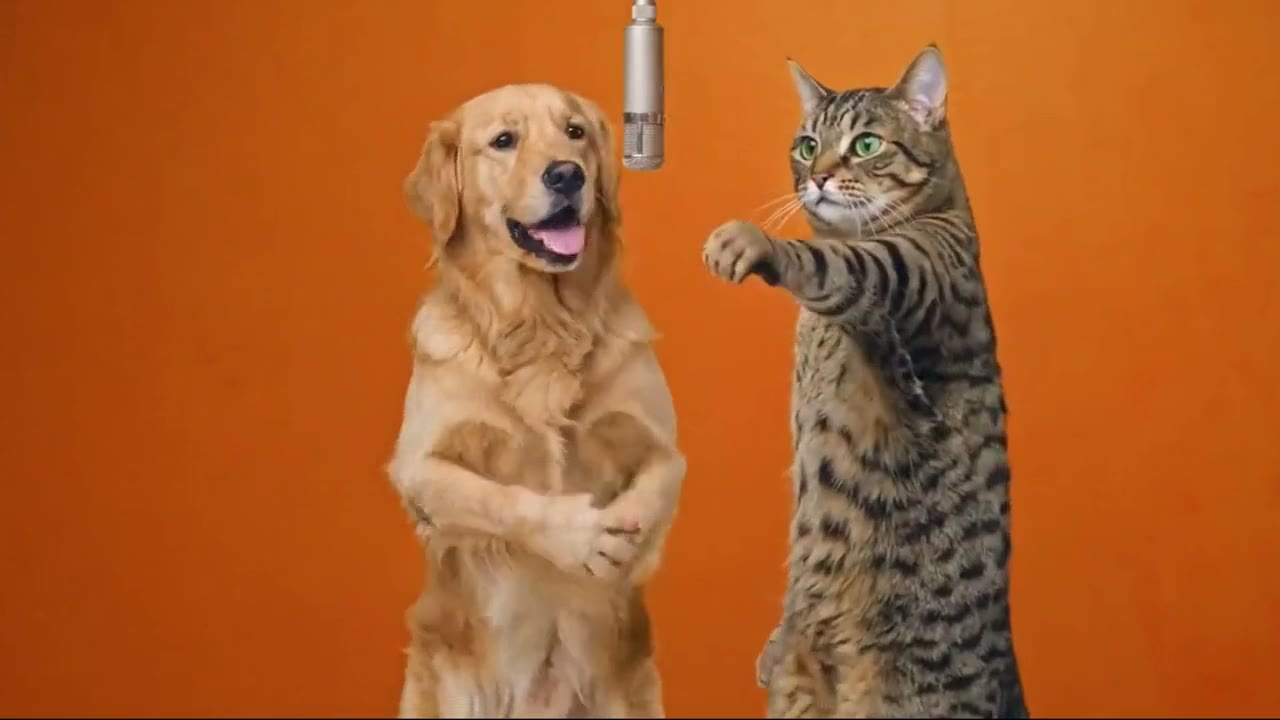
Yes. Any mix works: two people, a person and a pet, or two pets standing at the mic.
Is Hotel Lobby AI for one person or two?
Two. Upload 2 photos, one clear photo for each character. Group photos are not supported.
Can I use a photo of my pet?
Yes. This template works with a cat, dog or other pet photo as well as people. Use a clear photo with the pet's face visible.
Does the exported video include the original sound?
Yes. The audio is already mixed into the downloaded MP4, so you do not need to add the soundtrack in an editor.
How long is the video and what resolution do I get?
Every video from this template is 10 seconds, 16:9 landscape, as a watermark-free MP4. Choose 480p (25 credits), 720p (50 credits) or 1080p (100 credits). The Single Pass covers up to 720p; the Trio Pass or Party Pass unlocks 1080p.
What happens to my credits if the video fails?
If a generation fails, times out or is blocked by a safety check, the credits for that job return to your balance automatically (25, 50 or 100 by resolution). The video page shows the job status and whether the credits were returned.
What if I'm not happy with the result?
Credits come back automatically only when a generation fails; a completed video uses its credits. Results depend on photo clarity and lighting, so a sharp, front-facing, well-lit photo works best, and the studio shows a free framing preview before you spend credits. If a finished video has a serious technical problem, such as a broken file or missing audio, email support@trendswap.app with the video reference. Duplicate charges and purchases that never reached your account are handled under our refund policy.
How long are my photos and videos kept, and how do I delete them?
Your uploaded photo and finished videos stay in your account until you delete them; nothing expires automatically. Delete a video in My videos (/videos): this permanently removes the video file and the photo it was made from. You can remove an unused photo in the studio. To erase your whole account, email support@trendswap.app with the subject "Privacy Request". We do not use your photos or videos to train public AI models.
Photos and permissions
Use your own photos, photos of other adults who have agreed to it, or photos of pets you own. Do not upload celebrities, public figures or minors. A pack pays for creating the video; it does not grant commercial rights to the music or the original performance. TrendSwap is independent and is not affiliated with Quavo, Takeoff, Migos or COLORS.
Open the Hotel Lobby studio. More: the Hotel Lobby AI trend explained. Also see AI meme video tools that need no prompt.
Hotel Lobby AI Video Generator
Two photos, one orange wall and a hanging mic: trade bars like the Hotel Lobby COLORS performance with the original song.
Related Guides & Tutorials
Hotel Lobby AI Trend Explained: From the COLORS Show to 121M Views
How Quavo and Takeoff’s 2022 Hotel Lobby performance on A COLORS SHOW became fall 2026’s biggest AI duo trend, plus four ways to cast your own pair.
TrendSwap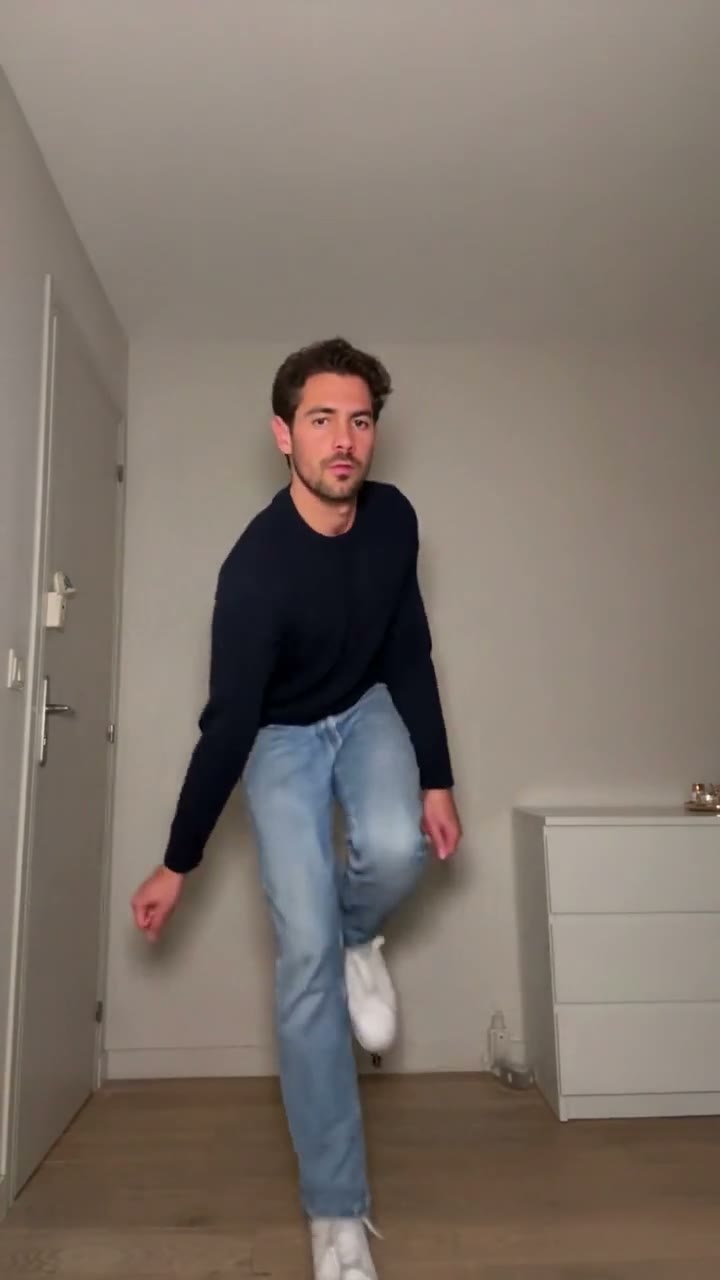
How to Make the Toc Toc AI Dance Video From One Photo
Dance the viral Jean Phil Toc Toc routine from one photo of you or your pet: hops, knocks, kicks and a wide-arm finish. 11s 9:16 MP4 from $9.90.
TrendSwap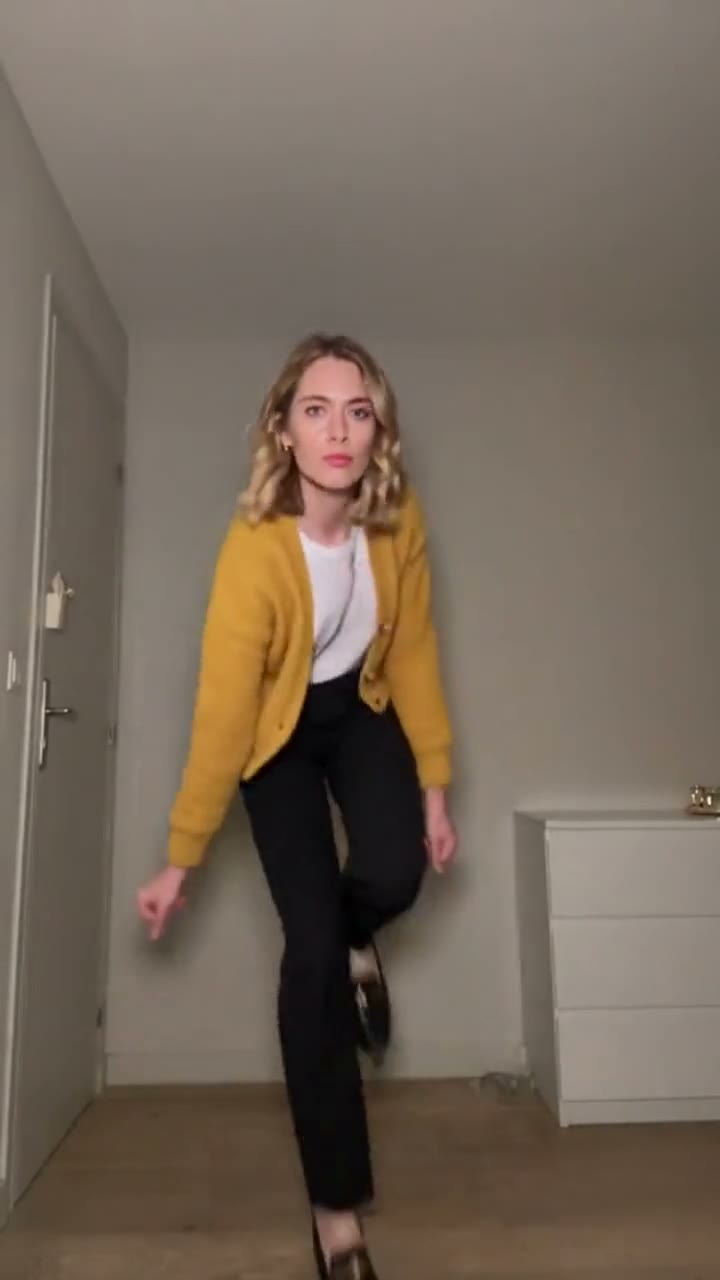
Toc Toc Dance Meaning: Jean Phil, the Song and 4 Ways to Remix It
Who is Jean Phil, which song is the Toc Toc dance set to, and how did a French solo in an empty room become a TikTok trend? Plus four remix ideas.
TrendSwap